Posts

Showing posts from 2013

Configure a WebLogic Server Background Service

Configure a WebLogic Server Background Service server running in the background which is very much required in Production and Test Environments where your operating platform is Windows NT based. Whenever the Windows server is rebooted the WebLogic Admin server or Managed servers running on it are going to started automatically, when they are configured with windows ‘services’. Use WebLogic existing Domain or Create a Domain for testing  Create a installation Script per WebLogic server such as AdminServer or Managed Server Create a .cmd let us workout per AdminServer  with the following  Open notepad or any editor to write the following Windows batch Script echo off SETLOCAL set DOMAIN_NAME=demoDomain set USERDOMAIN_HOME=F:\irfan\demoDomain set SERVER_NAME=AdminServer call "F:\Oracle\wlserver\server\bin\installSvc.cmd" ENDLOCAL Write the above code and SAVE it with ‘AdminServerSrv.cmd’ in your domain\bin open a n...
Why long way for thread dump on UNIX/Linux machines? Easy Steps!

Image
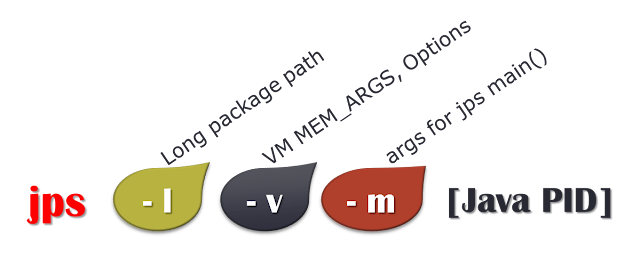
jps - Java process list : Java Utilitycommand  I was looking for diagnostic ways with freely available tools from JDK then I found the great valuable command tool 'jps'. The jps command can be used with three options(l, v, m). it can work for any Java - JEE Servers such as WebLogic, WebSphere, JBoss, Tomcat. In other words, any app server that uses the latest JDK 5+ version (version 6, 7, 8 also supports). Let me walk-through those interesting options in Win and *nix platforms. Before you execute this command tool, make sure that JAVA_HOME\bin is in the PATH setting. Java Command tool : jps options jps Option : jps -l this -l option will give the full Java package name that invoked the Java process. C:\Users\pavanbsd>jps -l 9116 sun.tools.jps.Jps 8812 weblogic.Server Filtering the weblogic instance with find command on jps will give you the desired outcome. C:\Users\pavanbsd>jps -l |find "weblogic" 8812 weblogic.Server jps -v this -v option is m...